
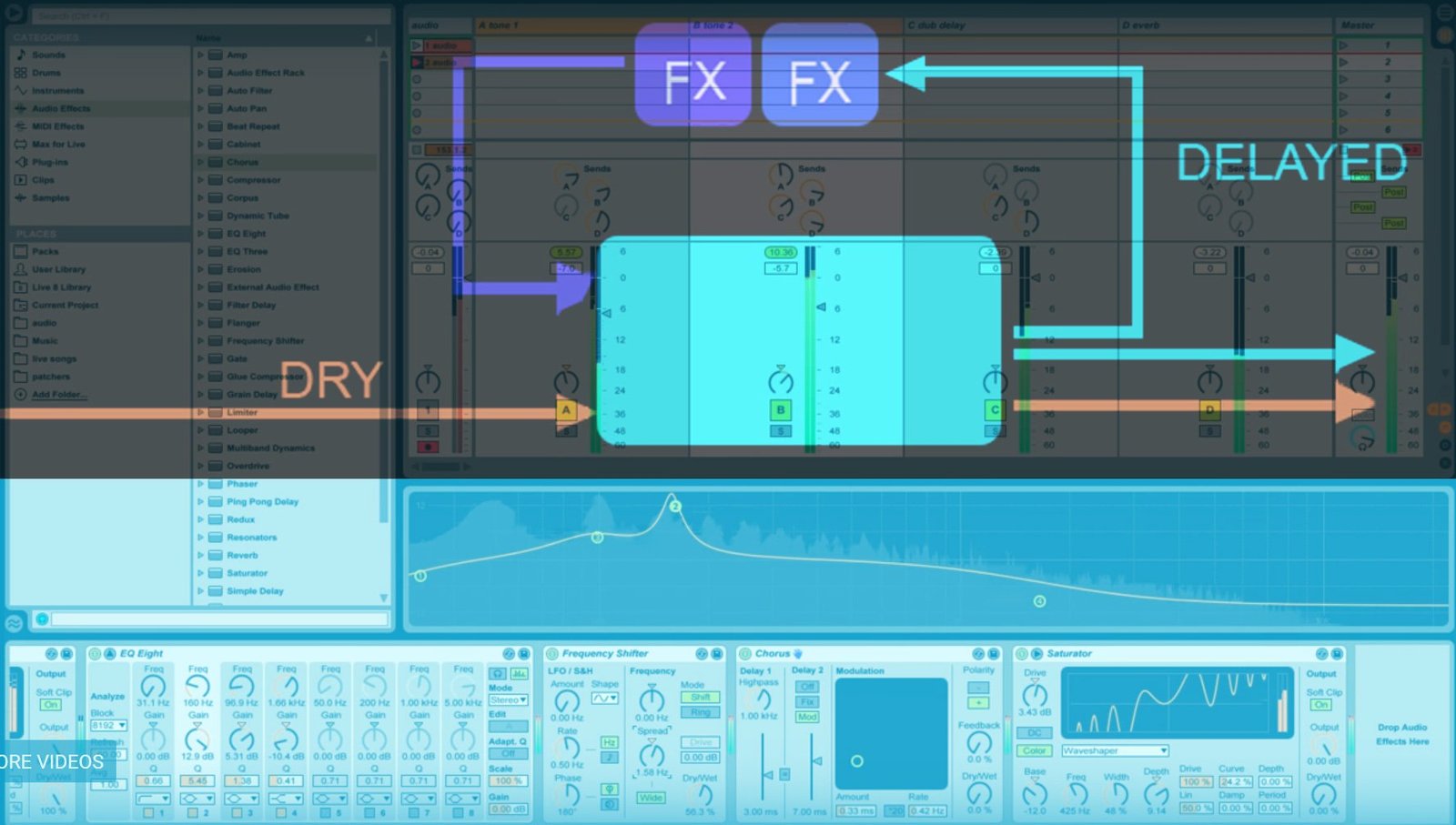
In this video I lead you through creating a “No Input Mixer” using Ableton Live feedback paths in the send and return channels.
Tag: Feedback
-

Tutorial – Ableton audio feedback part 1
Introduction
This tutorial is the first in a series covering feedback in synthesis and production, and how it can be a fun way to create new and interesting sounds with a seeming life of their own. Exploring feedback techniques can bring a complexity and uniqueness of sound to your tone palette, it is a sound with internal coherence so it might appear more “natural” than other types of synthesis or effect. If you are the type who learns by dismantling a working example, then there is a downloadable example file at the end of this tutorial.
What can I make with feedback?
The types of outcomes you can create with feedback range from Dub style delays, to no-mixer synthesis, to looping evolving ambient soundscapes.
here are three audio examples of the sound of feedbackDub delay
Regenerative looping
A no-input mixer
In this first tutorial I will focus creating the Dub Delay and a little bit of regenerative Looping. The tutorial also shows you the basics which can be used in all of these cases, this involves activating feedback in Ableton Live’s effect return channels and showing you how to progressively reshape the sound produced until you have a unique effect. I’ll explain some pitfalls to avoid which we should bear in mind as our experiments become more complex. In later tutorials I will cover feedback matrices and automation, intermodulation and other more advanced topics.
A “Dub Delay”
A short history and explanation
In the recordings of Lee “scratch” Perry, King Tubby, and others, there is a very recognisable echo sound which has come to be recognised as the “Dub Delay”. Often the effect device used was a very simple type of analog echo device known as a bucket brigade delay, however the notable sonic features which made the distinctive dub sound was NOT inherent in the delay device itself but in the way it was routed. This is what we will recreate.
Traditionally the way to incorporate effects returns on an analogue mixing board would be to have a send dial on each track (such as Drums), the effect send dial would send a percentage of the track signal out to the delay device, the effected signal would return back into the mixing board onto a dedicated return channel. This return channel was a very simple channel with no EQ, or any other features common to the rest of the mixing board tracks. The return channel could not send to other effects.
What Lee Perry (and others) did was to route the effect output of the Delay unit into a normal track channel, thus allowing the effected Delay returns to be EQed and even sent back to themselves using the effect sends, delay-eq-delay-eq-delay-eq-…. . Additionally it meant that the mixing engineers could now send delay into reverb, or reverb into a flanger and then into the delay. This allowed the creation of very flexible feedback loops which could quickly get out of control and start making chaotic noises, but a skilled operator could manage this chaos into art.
For some examples of Dub Delay in songs you can listen to a few in the dub section of my music shop
This is precisely what we intend to recreate.
Step one – make a feedback channel
Activate Ableton’s feedback mode
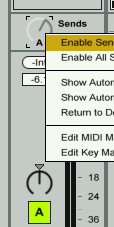 In Ableton Live we have a (possibly) unique ability to allow return channels to send back to themselves and each other, but by default you will notice that the return channel send dials are deactivated, this is to prevent users encountering unavoidable issues. We need to activate the return channel send dials for our experiment to work. Create a new return channel and title it “dub delay”, in that new channel right click on the send dial which would send back to itself and choose “activate send” from the context menu.
One thing you should understand is that by allowing Ableton Live to send effects back to themselves we have chosen to make plugin latency calculation for this special track almost impossible, so Live will no longer do PDC on tracks with feedback activated. I will explain further in the section titled “warnings”
The basic effects
Now find the “simple delay” device and drop it into this track, turn the wet/dry on the effect to 100% wet and VERY IMPORTANTLY turn the feedback down to zero. The reason for that is we are going to take care of the feedback signal path, we are taking that away the effect. Set the left and right sides to the same speed.
In a normal delay effect device path the audio comes in and this input gets sent to a “buffer” where it is delayed for a specified amount of time and then this wet signal is mixed into the dry signal and output. The feedback control sends an amount of the delayed signal back into the input so that is delayed once again, and that mix appears at the output and again is sent back to the input.
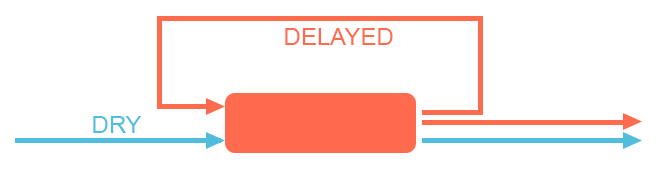
That closed loop is no use to us if we want to take control of feedback tonality. We need to inject our own toys into the loop so we have much more shaping control over the outcome.
You will need a sound source as we proceed, and I recommend any kind of snare-drum. Load a snare into any channel and use the effect send dial on that channel to send to your “dub delay”